Best Free Keylogger Report Delivery Email Configuration Guide
Before You Begin
Best Free Keylogger can deliver reports by Email, LAN, FTP, or USB. This page focuses on email delivery so the setup is easier to follow and verify.
Open the main window with the Unhide HotKey (default: Ctrl + Alt + Shift + K) or the Unhide Keyword (default: unhide in the Run dialog).
Configuration at a glance
- 1. Enable email sending.
- 2. Choose a preset or enter SMTP details manually.
- 3. Test the configuration before leaving the page.
1. Enable email sending
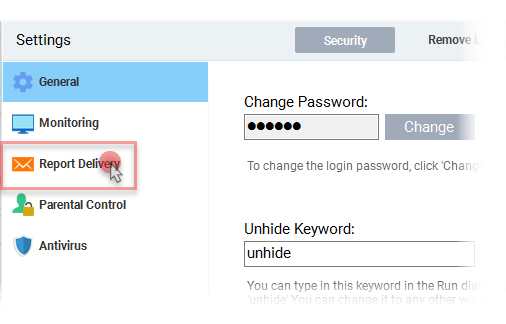
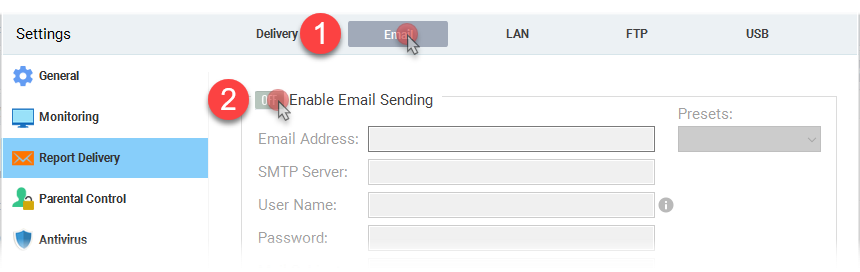
Start in Settings, open Report Delivery, then switch Email delivery on.
Steps
- Go to Settings from the toolbar.
- Click Report Delivery.
- Open the Email tab and enable Email Sending.
.png)
2. Enter SMTP server details
Best Free Keylogger includes presets for common mailbox providers. Use a preset when available, or enter the SMTP host and port manually.
Recommended approach
Click Presets first. If the provider is not listed, copy the SMTP values from the table below.
.png)
SMTP host and port reference
| Mailbox Provider | SMTP host | Port |
|---|---|---|
| Gmail | smtp.gmail.com | 587 |
| Yahoo Mail | smtp.mail.yahoo.com | 587 or 465 |
| Outlook | smtp.office365.com | 587 |
| Live (Hotmail) | smtp.live.com | 587 |
| AOL | smtp.aol.com | 587 |
| iCloud | smtp.mail.me.com | 587 |
After entering the values, click Test. A successful test should send a message to your inbox.
3. Enter email account details
Enter your email account details correctly in the input fields. These details are stored on the software itself, and they are never sent to our servers or elsewhere. So, your information is safe.
Presets:
Click Test. If everything is working fine, you should receive a test email to your inbox.
If the test returns successful, you’re good to go.
Common issues
If the test fails, use the troubleshooting cards below to narrow down the cause.
Authentication error
Check the username and password first. If the account uses two-factor authentication, create and use an app password instead of the regular one.
SMTP server or connection drop
Verify the SMTP host, confirm the internet connection, and try a preset if the provider is supported.
Invalid SMTP port
Recheck the port number against the provider requirements in the table above.
Keep reading
All posts Setup
SetupHow to install Best Free Keylogger
Install Best Free Keylogger correctly, from setup to your first login.
Read post Roundup
Top 10 free keylogger software
A quick comparison of free options, strengths, and trade-offs.
Read post Roundup
Top 10 Free Employee Monitoring
A quick comparison of free employee monitoring tools, strengths, and trade-offs.
Read post