Top 10 Free Parental Control Software in 2026
This guide compares ten parental control tools with free plans or free trials, judged on content filtering, screen time, and monitoring coverage. Each entry includes a concise summary, who it is best for, pros and cons, and key highlights to speed up your decision.
Quick take
The best choice depends on your devices: Windows and Xbox homes are well served for free by Microsoft Family Safety, Android families by Google Family Link, and mixed setups by Qustodio. For deep activity visibility on a Windows PC without a subscription, a local tool is hard to beat. Whatever you pick, talk to your kids about what is monitored — trust matters as much as any filter.
Best Free Keylogger
Our pick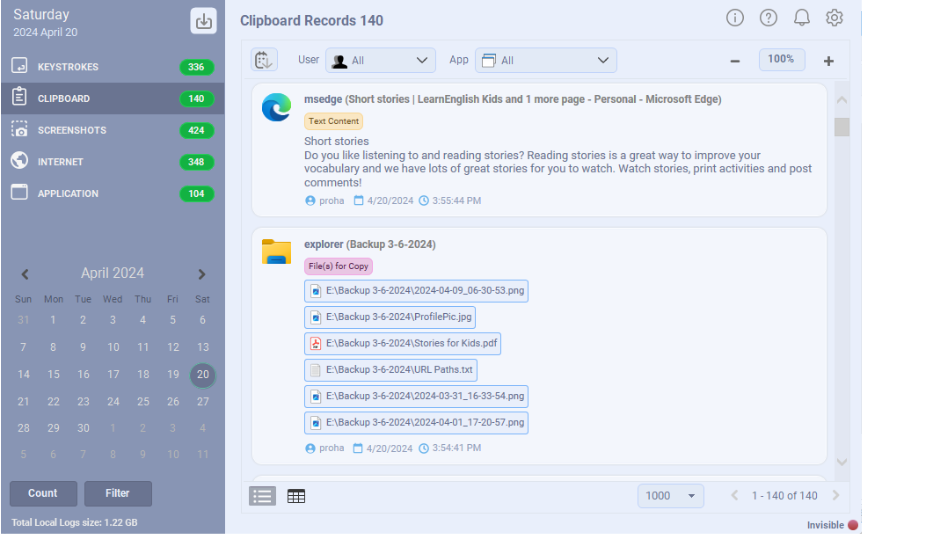
Best Free Keylogger pairs detailed activity tracking with practical parental controls such as one-click app restrictions and web filtering, all in a report viewer that is easy to read.
For a family PC, it gives you a clear picture of what your child does online without a subscription: keystrokes, applications, and visited websites are captured and presented as readable reports rather than raw logs. Smart Read reconstructs typed text into sentences, and one-click web and application blocking lets you keep specific sites and programs off-limits. Reports can be delivered by Email so you can review activity remotely. The free Lite tier covers everyday supervision, while Pro unlocks unlimited screenshots and full stealth as a one-time purchase — with no monthly bill.
Best for: Parents on Windows who want detailed activity visibility plus blocking, without a recurring subscription.
Pros
- No subscription — free Lite tier, one-time Pro upgrade
- One-click web and application blocking
- Smart Read turns keystrokes into readable text
- Email delivery for remote review
Cons
- Windows only
- No mobile app for phones/tablets
- Web and app blocking
- Readable activity reports
- Local, private monitoring
Qustodio Free
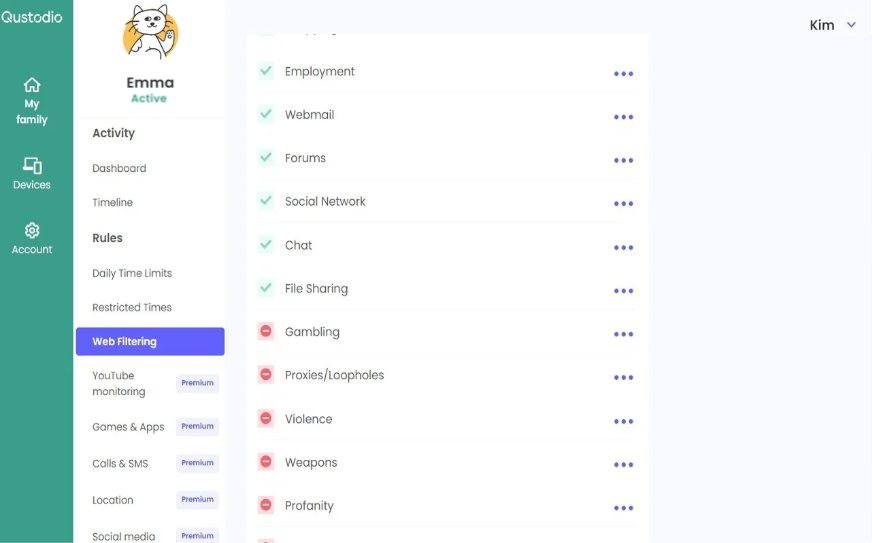
Qustodio offers one of the most complete free plans, with web filtering, screen time limits, and a clean cross-platform parent dashboard.
Its free tier covers a single device but still includes web filtering, daily time limits, and basic activity reporting from one dashboard that spans Windows, Mac, Android, and iOS. That cross-platform reach and ease of use make it the default recommendation for many families. Premium plans add multi-device coverage, location tracking, app blocking, YouTube monitoring, and longer activity history. The free plan is a strong starting point before deciding whether to pay.
Best for: Families wanting a genuinely usable free plan across mixed phones and computers.
Pros
- Comprehensive free plan for one device
- Cross-platform parent dashboard
- Web filtering and screen time limits
Cons
- Free plan limited to one device
- Location and app blocking are paid
- Cross-platform coverage
- Web filtering
- Screen time limits
Microsoft Family Safety
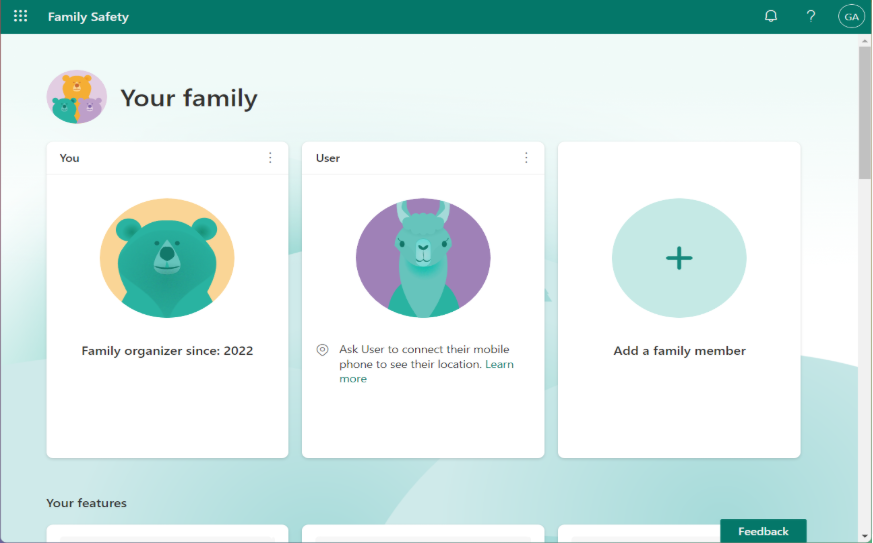
Microsoft Family Safety is free with a Microsoft account and shines for households on Windows and Xbox, with screen time, content filters, and activity reports.
Because it is built into the Microsoft ecosystem, it offers precise control over Windows PCs and Xbox consoles: screen time schedules, app and game age limits, web and search filtering in Edge, and spending controls for the Microsoft Store. A mobile app extends location sharing and drive-safety reports. Most features are free, which is a big advantage. The trade-off is that web filtering is strongest in Microsoft Edge and the experience is best when the whole family uses Microsoft accounts.
Best for: Households centered on Windows PCs and Xbox consoles.
Pros
- Completely free with a Microsoft account
- Deep Windows and Xbox integration
- Screen time, content filters, and spending limits
Cons
- Web filtering strongest in Edge
- Best only within the Microsoft ecosystem
- Windows & Xbox controls
- Screen time scheduling
- Location sharing
Google Family Link
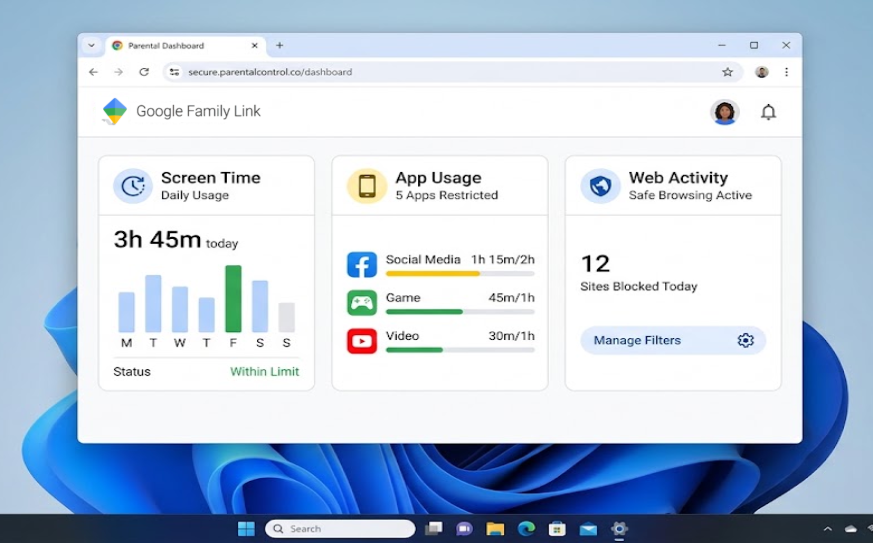
Google Family Link is a free tool for supervising Android phones and Chromebooks, with app approvals, screen time, and location.
It lets parents approve or block app installs, set daily screen time and bedtime schedules, remotely lock a device, and see its location — all from a free parent app. On Chromebooks it extends web and account supervision, making it a natural fit for Android-first families and students. It is less capable outside the Google ecosystem, with limited iOS coverage and web filtering that leans on SafeSearch rather than a full content filter.
Best for: Parents managing Android phones and Chromebooks.
Pros
- Completely free
- App approvals and install controls
- Screen time, device lock, and location
Cons
- Weaker on iOS and Windows
- Web filtering relies on SafeSearch
- Android & Chromebook focus
- App install approvals
- Location and device lock
Kaspersky Safe Kids
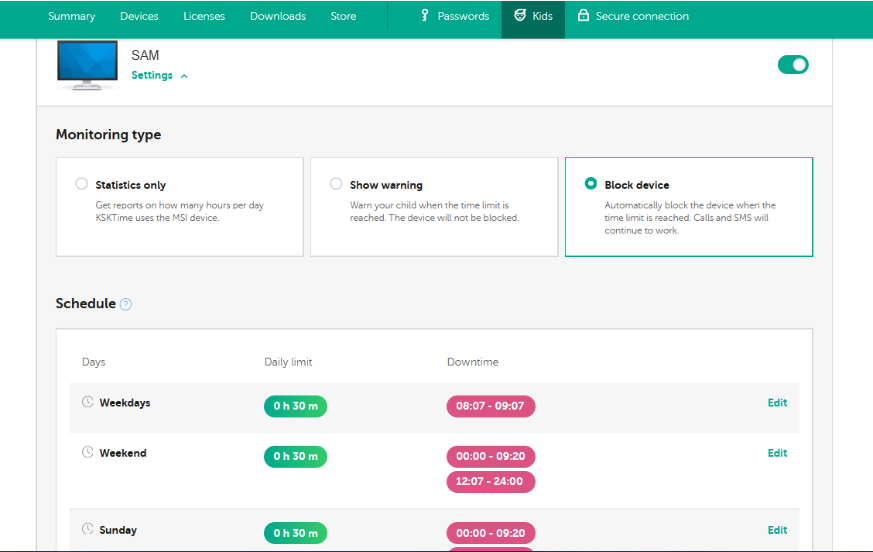
Kaspersky Safe Kids offers a capable free tier with web filtering, app control, and screen time across major platforms.
The free version is unusually generous, covering website categories, application management, and screen time on Windows, Mac, Android, and iOS. Premium adds real-time location, geofencing, YouTube search monitoring, and alerts. One important caveat: Kaspersky products can no longer be sold to or updated for US customers following a 2024 restriction, so buyers in the US should choose an alternative — this pick is most relevant for families outside the US.
Best for: Families outside the US wanting a strong free cross-platform filter.
Pros
- Generous free tier
- Cross-platform web and app control
- Screen time management
Cons
- Not available or updated for US customers
- Location and alerts are paid
- Web category filtering
- App management
- Screen time controls
OpenDNS FamilyShield
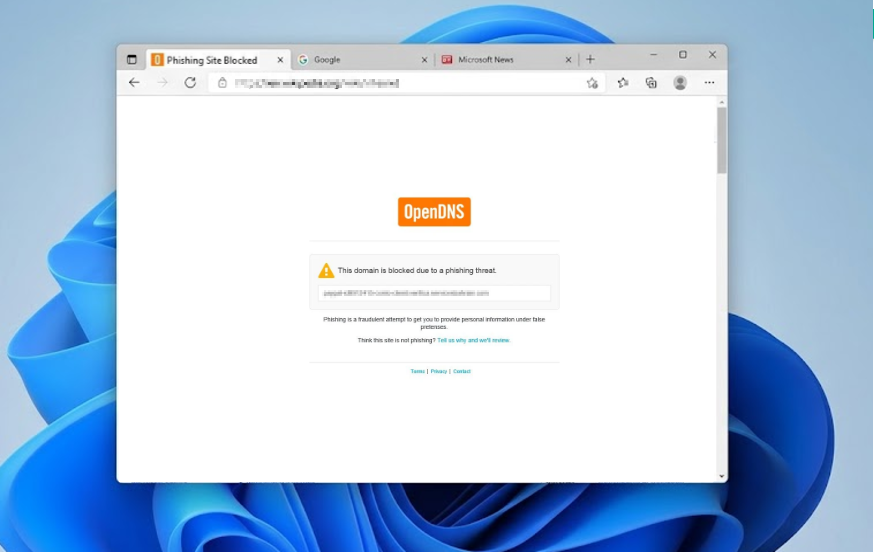
OpenDNS FamilyShield is a free, network-level filter that blocks adult content for every device on your home network by changing DNS settings.
Instead of installing an app on each device, you point your router (or a single computer) to FamilyShield DNS addresses, and it automatically blocks adult and malicious sites network-wide. That makes it effortless to cover smart TVs, consoles, and guest devices at once. The trade-off is that it is a blunt instrument: no per-child profiles, screen time, or activity reports, and tech-savvy kids can bypass it by changing DNS. It works best as a baseline layer alongside a device-level tool.
Best for: Parents wanting a zero-cost, whole-home content filter with no per-device setup.
Pros
- Completely free and network-wide
- No software to install per device
- Covers TVs, consoles, and guests
Cons
- No profiles, screen time, or reports
- Can be bypassed by changing DNS
- DNS-based filtering
- Whole-home coverage
- Zero cost
Norton Family
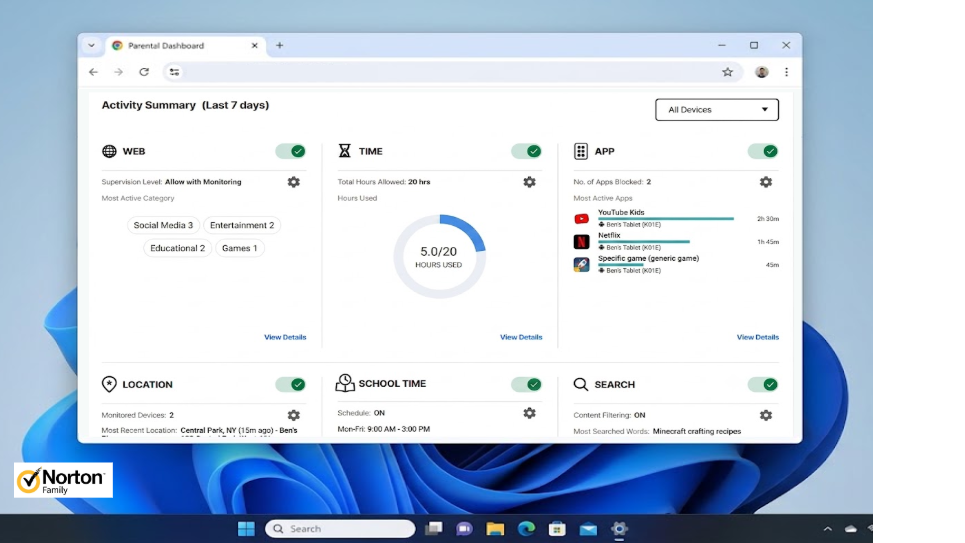
Norton Family delivers strong web supervision, time limits, and detailed activity reports, and is bundled with Norton 360 Deluxe.
It focuses on web content filtering, search supervision, and time scheduling, with clear reports of the sites and apps a child uses and even the terms they search. School Time helps keep kids focused during remote learning. There is no permanent free plan — you either use the free trial or get it bundled with a Norton 360 Deluxe subscription — but for existing Norton customers it is effectively free and well integrated.
Best for: Existing Norton 360 subscribers and families wanting detailed web reports.
Pros
- Strong web filtering and search supervision
- Detailed activity reports
- Included with Norton 360 Deluxe
Cons
- No standalone free plan (trial only)
- iOS features more limited
- Web content filtering
- Search supervision
- School Time focus mode
Bark
Bark takes an alert-based approach, using content analysis to flag concerning messages, images, and searches rather than showing everything.
Instead of raw logs, Bark scans texts, email, social media, and searches for signs of bullying, self-harm, predators, or explicit content, and alerts parents only when something needs attention. It adds screen time and web filtering on top. This respects a child’s privacy more than full monitoring while still surfacing real risks. It runs on a free trial then a paid subscription, and its deepest social-media coverage works best on Android.
Best for: Parents of teens who prefer risk alerts over reading every message.
Pros
- AI alerts for real risks, not raw logs
- Covers texts, social media, and email
- More privacy-respecting for teens
Cons
- Subscription after trial
- Deepest coverage is Android-centric
- Content risk alerts
- Social media monitoring
- Screen time and filtering
KidLogger
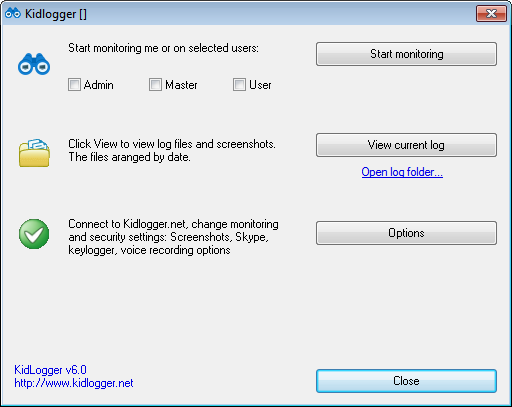
KidLogger provides a free tier with activity logs, app usage, and screenshots, synced to a web dashboard for remote viewing.
Its free plan captures keystrokes, application usage, and periodic screenshots, uploading them to your KidLogger account so you can review activity from any browser. It is one of the few free tools with cross-platform agents and CSV/JSON export. The free plan caps retention, tracked devices, and screenshot frequency, and it leans toward monitoring rather than filtering, so pair it with a blocker if you also need to restrict content.
Best for: Parents who want free cloud-based activity logs across a few devices.
Pros
- Free tier with logs and screenshots
- Web dashboard for remote viewing
- Cross-platform agents and export
Cons
- Free tier limits retention and devices
- Monitoring-focused, light on filtering
- Activity and app logs
- Web portal access
- CSV/JSON export
FamiSafe
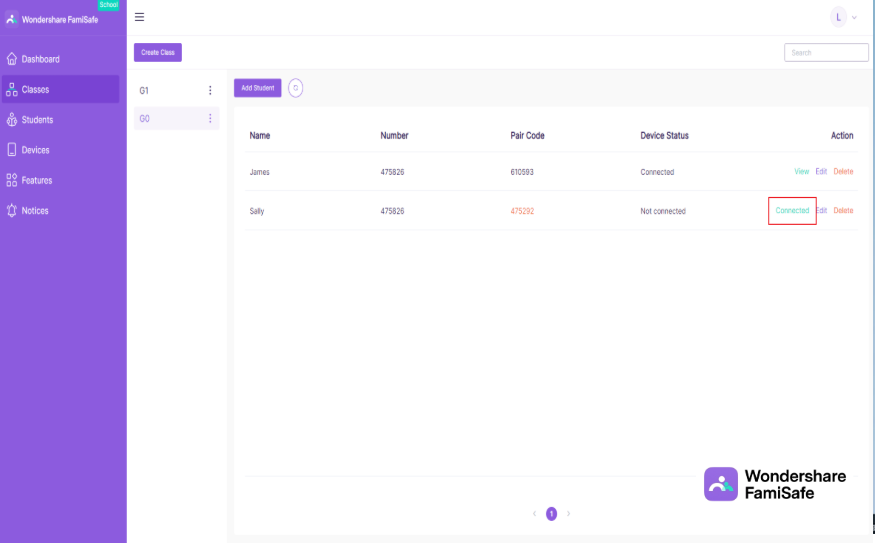
FamiSafe (by Wondershare) is a feature-rich mobile-first parental control app with location, screen time, app blocking, and content detection.
It combines real-time location and geofencing, screen time and app limits, web filtering, and explicit-content detection across photos and messages, managed from a polished parent app. It is a strong all-rounder for phone-focused families, with driving reports and YouTube history on top. There is no permanent free plan — a free trial leads into a subscription — so it competes on breadth rather than cost.
Best for: Mobile-first families wanting location plus content controls in one app.
Pros
- Location tracking and geofencing
- Screen time and app blocking
- Explicit-content detection
Cons
- Subscription after trial
- Feature depth varies between iOS and Android
- Location and geofencing
- App and screen time limits
- Content detection
Explore Best Free Keylogger
Detailed visibility and blocking on the family PC
Want a clear picture of what happens on your Windows PC, plus one-click web and app blocking, without a monthly bill? Start with Best Free Keylogger and compare it against the tools in this list.
Keep reading
All posts Setup
SetupHow to install Best Free Keylogger
Install Best Free Keylogger correctly, from setup to your first login.
Read post Roundup
Top 10 free keylogger software
A quick comparison of free options, strengths, and trade-offs.
Read post Roundup
Top 10 Free Employee Monitoring
A quick comparison of free employee monitoring tools, strengths, and trade-offs.
Read post