Best Free Keylogger Getting Started: View Report
A quick walkthrough of the report viewer: how to open a day’s activity, read the record counts, and filter the results so the log is easy to scan.
Best Free Keylogger is a PC monitoring tool you can use to monitor keystrokes, clipboard, internet activity, and application usage on your computer.
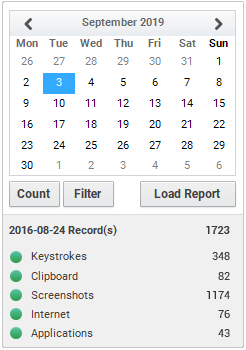
You can view records of each day by simply selecting the relevant date and clicking "Load Report". For more information, please have a look at the following guide.
How To View Reports
Opening a report takes three steps. Everything happens inside the report viewer — no files to manage manually.

- 1
Select the date
Choose the day you want to review from the calendar. Any day with captured activity can be loaded.
- 2
Click Load Report
Press Load Report to pull that day’s records into the viewer.
- 3
Read the category counts
The counts show how many records are available in each category: keystrokes, clipboard, screenshots, internet, and applications.
After Loading the Report
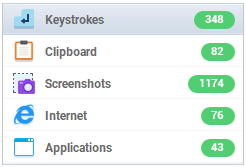
These numbers show the number of records in the loaded report for keystrokes, clipboard, screenshots, internet, and applications.
How to Filter Records
After loading a report, use the filter bar at the top of the viewer to find what you need faster.

- 1
Sort records in Chronological order (Latest First or Earliest First)
- 2
Filter records by User
- 3
Filter records by Application
- 4
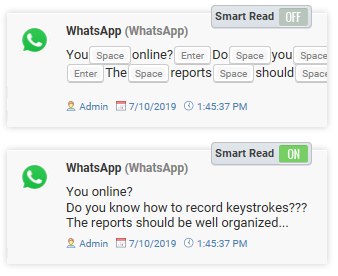
Enable Smart Read filter
Smart Read makes reports easier to read.
Next steps
Bringing logs over from another PC? See how to load reports. Want reports sent to you automatically? Follow the email delivery configuration guide.
Keep reading
All posts Setup
SetupHow to install Best Free Keylogger
Install Best Free Keylogger correctly, from setup to your first login.
Read post Roundup
Top 10 free keylogger software
A quick comparison of free options, strengths, and trade-offs.
Read post Roundup
Top 10 Free Employee Monitoring
A quick comparison of free employee monitoring tools, strengths, and trade-offs.
Read post